PIEMulator
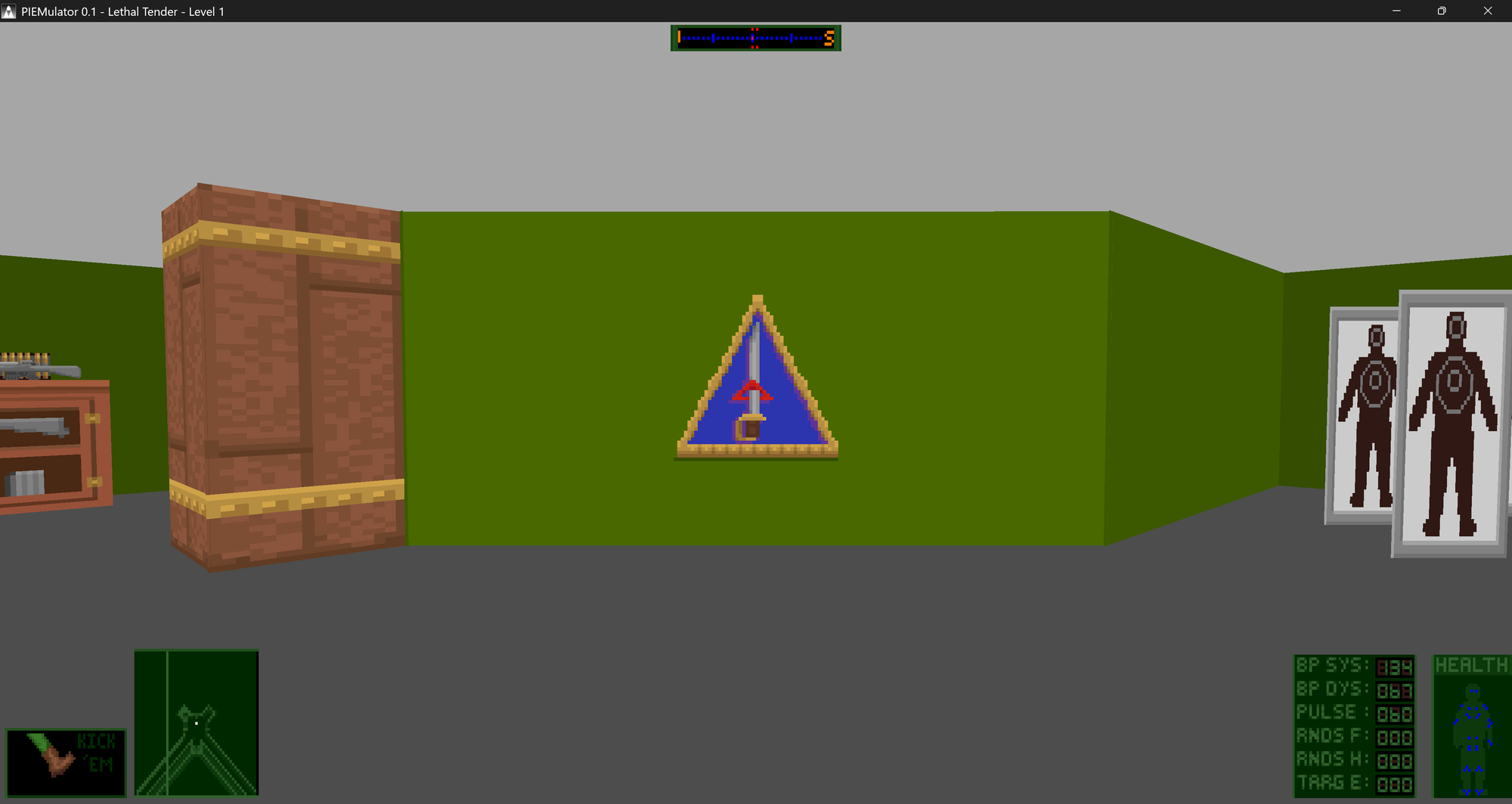
Play the games of Pie in the Sky's POWER engine family on modern Windows and Linux: those made with the 3D Game Creation System, and those on POWER 3D and the engines derived from it. With widescreen, mouse look and a real 3D view.
Beta 0.2PIEMulator is in beta: not every game has been played through to the end yet. Games are not included: you need the game's own files. Questions and bug reports: Discord.

Update 0.2 available: what's new
- Linux: PIEMulator now runs on Linux too, as well as Windows.
- Original pace: the games run at the speed of the PCs they were made for. Before, much of each game ran too fast: the machine gun, grenades (which could go off at your feet), animations, and enemies and your own moves.
- Still smooth: the view keeps your display's refresh rate, so turning, walking and jumping stay smooth between the game's frames.
- New Engine slider in the game list, to choose the game's frame rate, from 10 to 70 frames a second (see The game list).
- Mouse look: walls and floor turn together, and objects keep facing you while you turn.
- OpenGL view: the floor no longer shifts slightly against the walls as you walk.
- Minimal HUD: the item boxes sit beside the weapon at the bottom left, and the row of objects to drop shows on top of them.
- Fixed: after Alt+Tab or Alt+F4, W A S D and E could stop working in the next game.
- Game list: a tidier layout; the start options are now called Maximized and Fullscreen, with the sliders beside them.
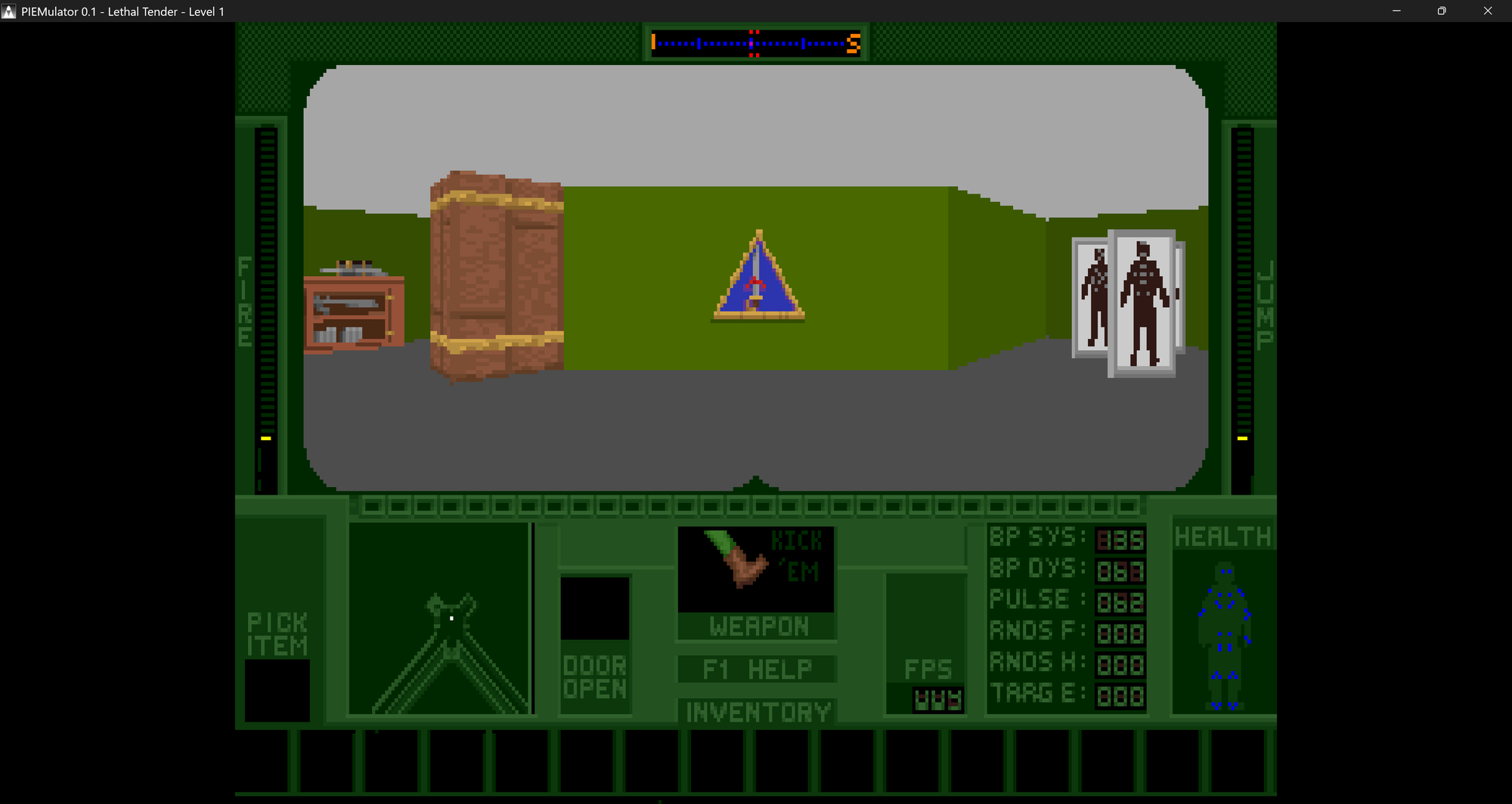
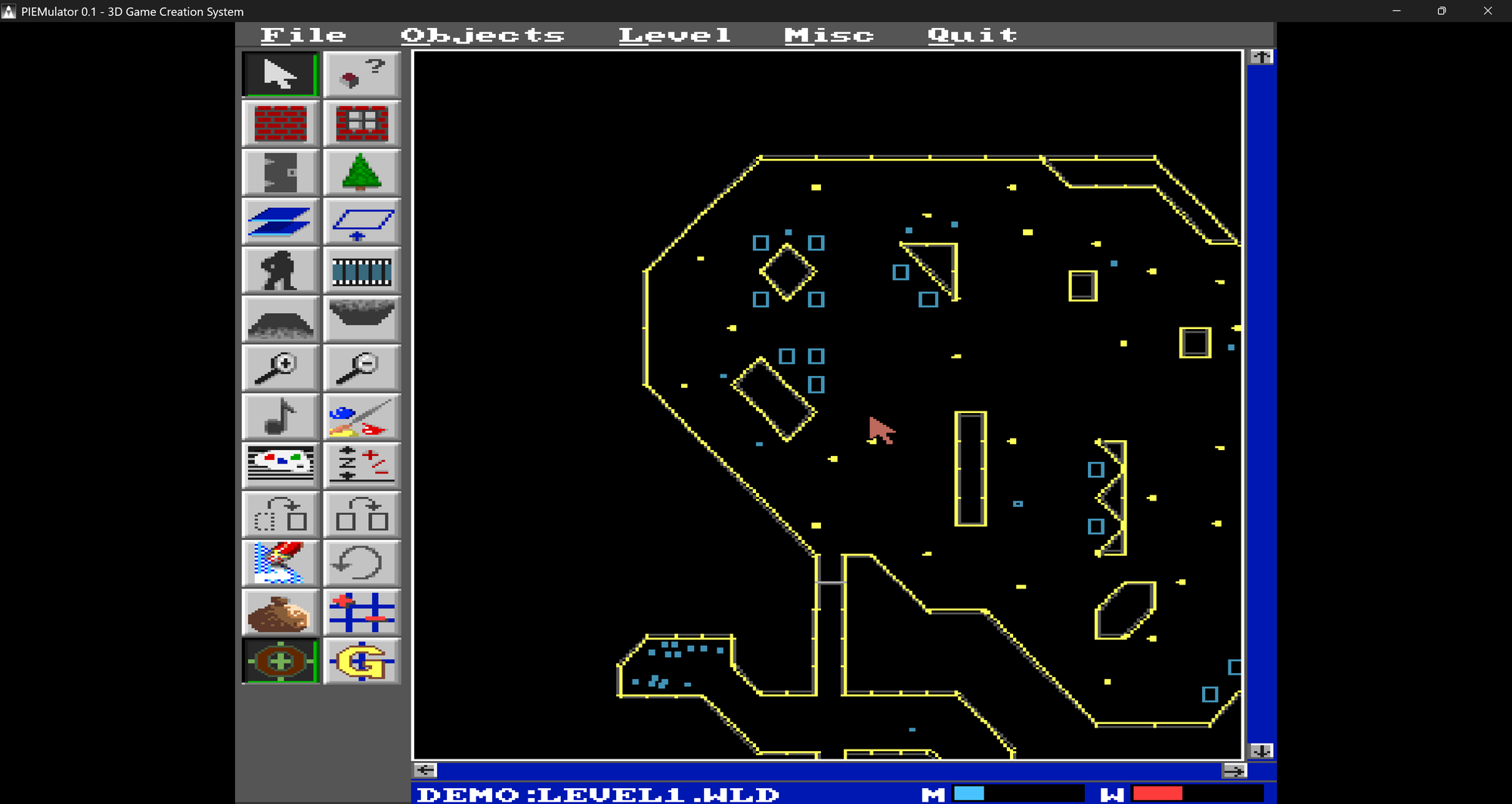
PIEMulator runs the DOS games of Pie in the Sky Software’s POWER engine family on today’s computers: Pie in the Sky’s own, from Lethal Tender (1993) on; the games made with its 3D Game Creation System (GCS, 1993-95); and the games on POWER 3D and the engines derived from it. It also runs GCS itself, with its level editor, paint program and build tools. No DOS box is needed. You can play the games just as they looked in 1995, or turn on an OpenGL view with widescreen, mouse look and modern controls.
Screenshots
Features
Native Windows and Linux
64-bit builds for both. No DOSBox, no virtual machine.
Fast and smooth
Each game runs as native code, made on your computer as it loads. Games keep their original pace, while the view stays smooth at your display's refresh rate.
A real 3D view
An OpenGL view draws the game's world as true 3D, at your screen's resolution. Switch to the original renderer at any time.
Widescreen
The view fills a wide window or monitor, with the HUD kept in proportion.
Mouse look and WASD
Turn and look up and down with the mouse, walk with W, A, S and D, fire with the mouse button.
Your own controls
Rebind any key or mouse button, for every game or for one, in play, in the inventory and in the menus.
Sound and music
Sound Blaster effects and AdLib music, as the games played them.
Over a hundred games
See the list below.
GCS itself
The level editor, GCS Paint and the build tools work too, so you can still make a game.
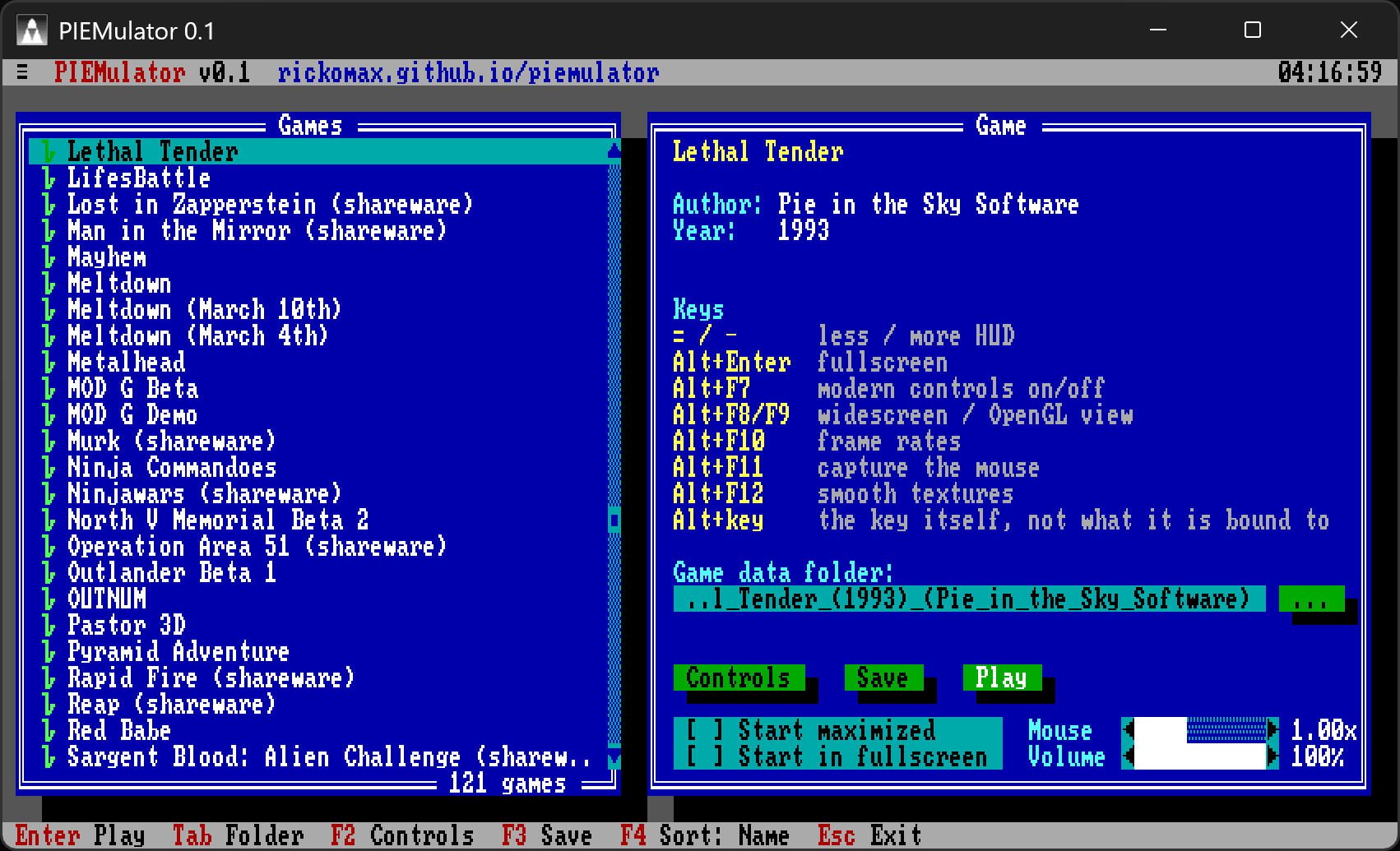
A game list in the spirit of DOS
Pick a game and play. Its window stays the same from the list to the game, ready for screen recording.
No original code inside
PIEMulator is not built from the source code of GCS, its engine or any game. Pie in the Sky’s source code was never used. Everything PIEMulator knows about those programs was learnt from the programs themselves, as they were shipped.
The download does not contain the original programs either, nor any recompiled code made from them. It holds only PIEMulator’s own code: a reimplementation of the PC the games were written for, and the tools that recompile a game.
Games are recompiled on your own computer, each time you play. When a game starts, PIEMulator reads the game’s own programs from your folder and turns them into native code in memory. When you close the game, that code is gone. Nothing made from a game is ever sent anywhere or shipped with PIEMulator.
Games
PIEMulator’s game list has over a hundred games. Pie in the Sky’s own:
- 3D Game Creation System 1995
- 3D Xmas Adventure: Santa's Rescue 1996
- Industrial Killers 1995
- Lethal Tender 1993
- Meltdown 1995
- Stop Nick Macki 1993
- Terminal Terror 1994
- Many more...
The many more are the games other people made with GCS, POWER 3D and the engines derived from them, from 1995 to the 2010s. Each runs from your own copy of its files; PIEMulator includes none of them.
Several of these were released in more than one version (shareware, registered, earlier or later releases); the list knows each of them. A game with adult content is left out of the list unless you ask for it (see Settings file).
Getting started
- Download the build for your system and extract it to a folder of its
own, for example
C:\Games\PIEMulatoror~/piemulator. - Add your games. Make a folder named
gamesnext topiemulator, and put each game in a folder of its own inside it. Each game in the list has a usual folder name, shown on the right when you select it; a game in a folder with that name is found by itself. Or keep the game where it is and choose its folder with …. - Start it. Run
piemulator.exeon Windows, orpiemulatoron Linux. It opens the game list. - Pick a game and press Play. The game starts in the same window, and the list comes back when it ends.
The game’s folder needs the game as it was shipped, its programs included.
PIEMulator finds the game anywhere up to three folders deep inside it, so an
unpacked archive can be used as it is. To use GCS itself, put its folder,
named GCS, next to piemulator. For example:
C:\Games\PIEMulator\
    piemulator.exe
    games.ini
    GCS\                                                 GCS itself
    games\
        Lethal_Tender_(1993)_(Pie_in_the_Sky_Software)\
        Stop_Nick_Macki_(1993)_(Pie_in_the_Sky_Software)\
        ...
On Linux the games folder’s name is lower case.
The game list
| Key | Does |
|---|---|
| Enter | Play the selected game |
| Tab | Type the game’s folder |
| F2 | Controls: the key bindings |
| F3 | Save the folders and settings |
| F4 | Sort the list by name, year or author |
| Esc | Exit |
| A letter | Jump to the games starting with it |
On the right are the selected game’s name, author and year, anything a player should know about it, and the keys below. Under them:
While playing
| Key | Does |
|---|---|
| = / - | Less or more HUD: the full HUD; a minimal one with only the weapon, the readouts, health, the compass, the radar or map, and the item a door asks for, along the window’s edges; or none at all |
| Alt+Enter | Fullscreen or a window |
| Alt+F7 | Modern controls on or off |
| Alt+F8 | Widescreen on or off |
| Alt+F9 | The OpenGL view, or the engine’s own renderer |
| Alt+F10 | Show the frame rates over the view |
| Alt+F11 | Capture the mouse, or let it go |
| Alt+F12 | Smooth textures and picture |
| Alt+any key | Sends that key itself, not what it is bound to (to type a name, say) |
Controls
While the 3D view is being played, PIEMulator adds modern controls. Each key or button below sends one of the game’s own keys, so the game handles it as it always did.
All the game’s other keys still work: weapons 1 to 9, the map, Esc and the rest.
The default bindings
There are three sets of bindings: one while playing, one while you choose an object to drop, and one for the menus, the map and the pause and help screens. A key that isn’t listed sends itself.
Some games come with bindings of their own, to match their controls. In Stop Nick Macki, whose 1993 engine kicks and fires with Space, the left mouse button and Ctrl send Space. The Controls screen shows these as the game’s defaults.
Controls (F2 in the game list) changes the bindings, for the selected game or for every game. There are three sets: Playing, Inventory (while you choose an object to drop) and Menus. Click an input and press the game’s key it should send, or choose Pick up, None, or Clear to go back to the default. Add input takes any key, mouse button or the mouse wheel.
The settings file
The game list keeps its settings in piemulator.cfg, next to piemulator (or in your
user settings folder, if that one can’t be written). It can also be edited
by hand:
start_maximized=1        # every game's window opens maximized
start_fullscreen=1       # every game opens in fullscreen
engine_fps=17.5          # the game's frame rate: 10, 11.7, 14, 17.5, 23.3, 35 or 70
mouse_sensitivity=1.5    # 0.25 to 2.5
volume=80                # 0 to 100
show_adult=1             # list games with adult content
bind.all.e=i             # E picks up in every game
bind.all.wheelup=2       # the mouse wheel picks weapons 2 and 3
bind.all.wheeldown=3
bind.all.menu.q=esc      # in the menus, Q backs out
What PIEMulator knows of each game (its name, folder, default bindings, and
for a few games a frame rate of their own, used instead of the Engine slider)
is in games.ini, next to piemulator. A games.ini in your user settings folder is
read after it, to add games or change them, without touching the installed
one.
Troubleshooting
The game list can't find a game
Select the game and choose its folder with …. The folder must hold the game as it was shipped, programs included; an installer or a compressed archive must be installed or unpacked first.
A game runs slowly
If the console says the game “is not a known game executable”, its program was changed or comes from a release PIEMulator doesn’t know. It still runs, but slower. Please tell us on Discord which game and release it is, so it can be added.
Windows warns that the program is from an unknown publisher
The beta builds are not signed yet; the warning does not mean anything
harmful was found. Choose More info, then Run anyway. Or, before
unpacking, right-click the downloaded .zip, choose Properties, tick
Unblock and press OK.
Enemies and animations move less smoothly than the view
That is the original pace: the game itself runs at 17.5 frames a second, as on the PCs it was made for, while PIEMulator keeps the view smooth between its frames. To make them smoother, raise Engine in the game list; above the default, the machine gun, grenades and animations run faster than they should.
The mouse doesn't turn the view
The modern controls only take over while the 3D view is being played. If the mouse is still free, press Alt+F11 to capture it, and check that the modern controls are on (Alt+F7).
The controls don't match the game's instructions
The modern controls change them on purpose. Alt+F7 turns them off, for the game’s original keys. To change a single key, use Controls in the game list.
I can't type a name, or a letter does something else
Hold Alt while typing: Alt with a key sends that key itself, whatever it is bound to.
Something looks wrong in the OpenGL view
Press Alt+F9 to switch to the engine’s own renderer, and let us know which game and where.
On Linux, the folder picker doesn't open
It needs zenity or an xdg-desktop-portal. You can also type the folder:
select the game and press Tab.
Limitations
- No network, modem or serial play.
- No joystick: it reads as absent, as on a PC without one.
- PIEMulator is a beta. Not every game has been played through to the end.
Games are not included
PIEMulator does not include, sell or distribute any game, nor GCS itself, nor any part of them. To play, you need your own copy of the game’s files. Please don’t ask for copies of games in the project’s channels.
The games, GCS and the POWER 3D engine belong to their owners. PIEMulator, its developers and contributors are not responsible for unauthorised or illegal redistribution of copyrighted game files.
About
3D Game Creation System, POWER 3D and Lethal Tender are (C) Pie in the Sky Software. The games made with them belong to their authors.
PIEMulator is developed and maintained by Ricardo Reis. It is not affiliated with or endorsed by Pie in the Sky Software.
PIEMulator is free. It may not be sold, or included with anything that is sold, without permission.
Third-party software:
- SDL 3 - zlib License
- Capstone - BSD 3-Clause License
- TinyCC - GNU LGPL 2.1, as
libtcc.dll(libtcc.soon Linux), which you may replace with your own build (source, commit43c7708b85681a2fd4451c8a541af4494a8919b2, unmodified)
The licences, and how TinyCC was built, come with the download, in its licenses folder.
Website: https://rickomax.github.io/piemulator
Discord: https://discord.gg/kKvzfqFTJ
Support the project: https://ko-fi.com/X8X3MRF5W